Shortcuts
See, enable and disable the keyboard shortcuts available in Rambox.
Rambox's features and options can also be accessed by shortcuts.
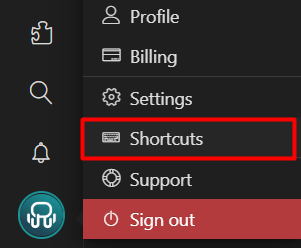
You can see and enable/disable them in the Shortcuts panel, accessed by clicking on your profile picture, and then selecting "Shortcuts":
This is the list of available shortcuts:
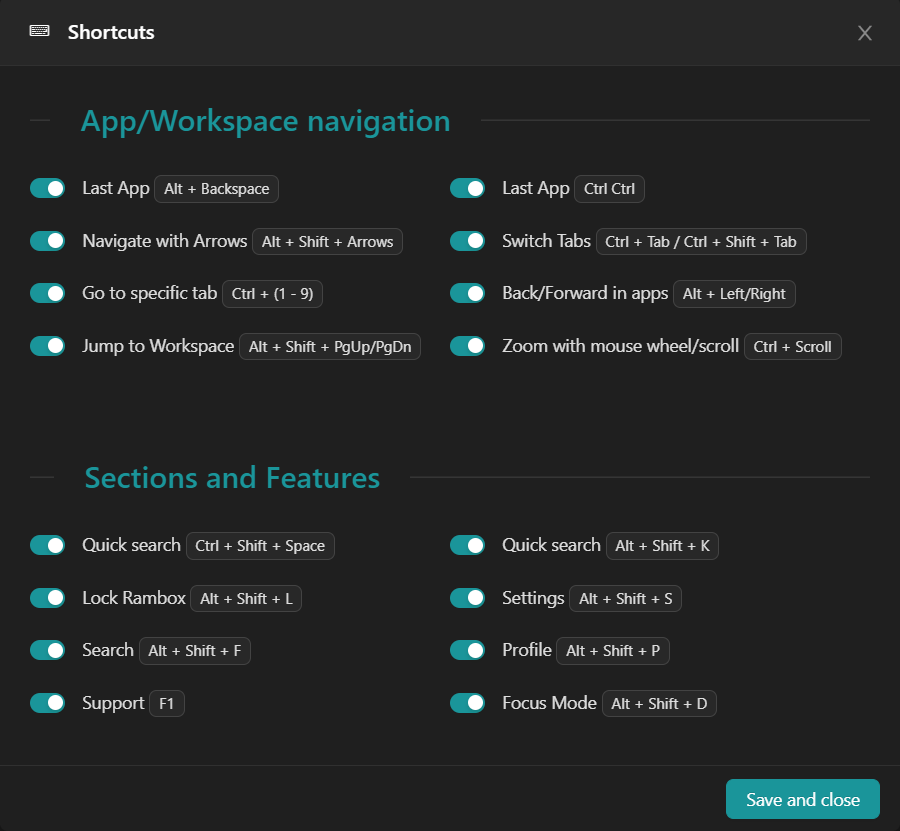
App/Workspace navigation
Back to previous app
Windows/Linux: two times CTRL or ALT + Backspace
Mac: two times Cmd or ALT + Backspace
Navigation with Arrows
Windows/Linux: ALT + SHIFT + Arrows
Mac: Cmd + ALT + Arrows
Switch tabs
Windows/Linux: CTRL + TAB, CTRL + SHIFT + TAB
Mac: CTRL + TAB, CTRL + SHIFT + TAB
Go to specific tab
Windows/Linux: CTRL + (1 to 0)
Mac: Cmd + (1 to 0)
Back/Forward in apps
Windows/Linux: ALT + Left / ALT + Right
Mac: Cmd + Left / Cmd + Right
Jump to Workspace
Windows/Linux: ALT + SHIFT + PgUp/PgDn
Mac: Cmd + ALT + PgUp/PgDn
*NOTE: In macOS laptops, the PgUp/PgDn keys are accessible through the "Fn" key and the "Up" and "Down" arrows, so the shortcut will be the following: Cmd + ALT + Fn + ArrowUp/ArrowDown
Sections and Features
Support
Windows/Linux: F1
Mac: F1
Profile
Windows/Linux: ALT + SHIFT + P
Mac: ALT + P
General settings
Windows/Linux: ALT + SHIFT + S
Mac: ALT + S
Focus Mode toggle
Windows/Linux: ALT + SHIFT + D
Mac: Cmd + D
Zoom entire Rambox
Windows/Linux: CTRL + ALT + -/+
Mac: Cmd + ALT + -/+
Zoom only in current app
Windows/Linux: CTRL + -/+ or
Mac: Cmd + -/+
Zoom only in current app with mouse wheel/scroll
Windows/Linux: CTRL + Scroll
Mac: Cmd + Scroll
Quick search
Windows/Linux: ALT + SHIFT + K or CTRL + SHIFT + SPACE
Mac: Cmd + ALT + K or Cmd + SHIFT + SPACE
Search
Windows/Linux: ALT + SHIFT + F
Mac: Cmd + ALT + F
Lock
Windows/Linux: ALT + SHIFT + L
Mac: Cmd + ALT + L
Link Handling
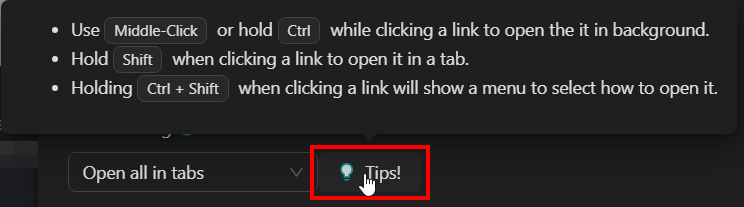
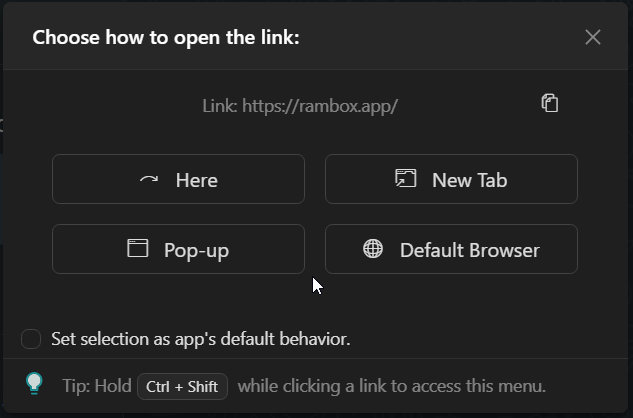
Use these keys+click combinations when clicking a link to open it in different ways. You can find more information about these shortcuts in our Link Handling article.
Open link in a new tab
Windows/Linux: SHIFT + Click
Mac: SHIFT + Click
Open link in the background
Windows/Linux: Middle-Click or CTRL + Click
Mac: Middle-Click or Cmd + Click
*NOTE: In certain Linux distributions, this option will open the link in your default browser, but not in the background.
Open link handling menu
Windows/Linux: CTRL + SHIFT + Click
Mac: Cmd + SHIFT + Click
You can also hover over the "Tips!" button in the App's Settings and find these Link Handling shortcuts.