
Apps and Workspaces quick settings
Right-click an app or workspace tab to mute, disable or reload it without opening the full settings.
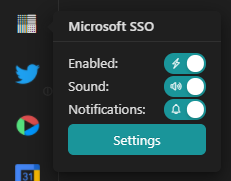
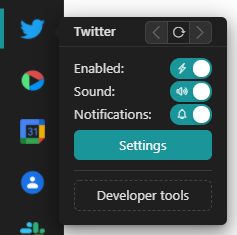
You can see the quick settings of apps and workspaces by right-clicking their tab. There you can access to the complete settings view and configure some quick options. These options are useful when you need to temporarily mute or disable apps or groups.
These are the quick settings for workspaces:
And these are the ones for apps:
Sounds
As in complete settings, enable this option if you want Rambox to reproduce apps or workspaces sounds. If you disable this option, this app or workspace will be muted.
Notifications
As in complete settings, set this option if you want to receive notifications of your app or within the workspace.
Enabling
By disabling an app or workspace (will disable all nested elements) it'll no longer load, and therefore you'll no longer receive messages and notifications.
Reload & Navigation (only Apps)
You can navigate the app's history (back & forward) by clicking on the arrows. Also, you can reload the app if you need to by clicking the reload button.
Settings
You can enter to the complete settings from this button. It'll show you the configuration view of the app or workspace.