
How to add groups and apps to a workspace.
Add groups and apps to an Enterprise workspace from the Web Admin.
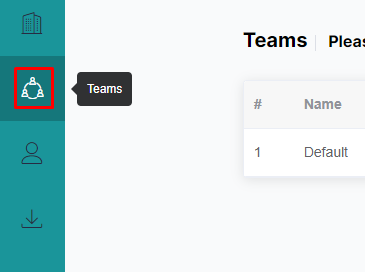
Go to the Team's section in the Web admin.
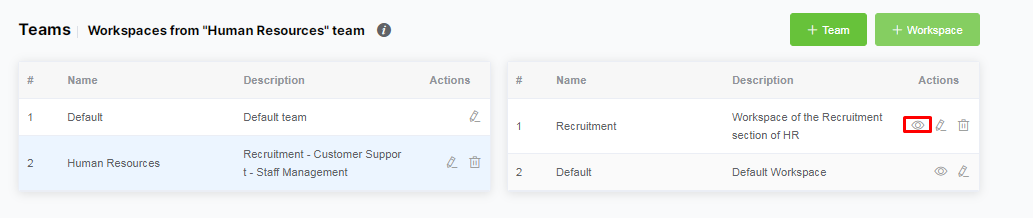
Select the team of the workspace that you want to modify.
Click on the "eye" button. A drawer will open.
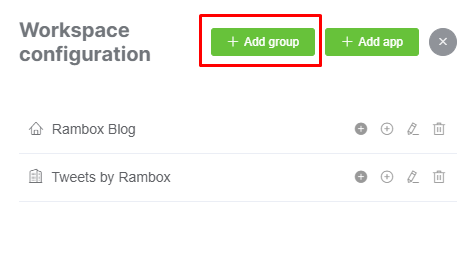
Let's add a group by clicking on the "+ Add group" button at the top left of the drawer.
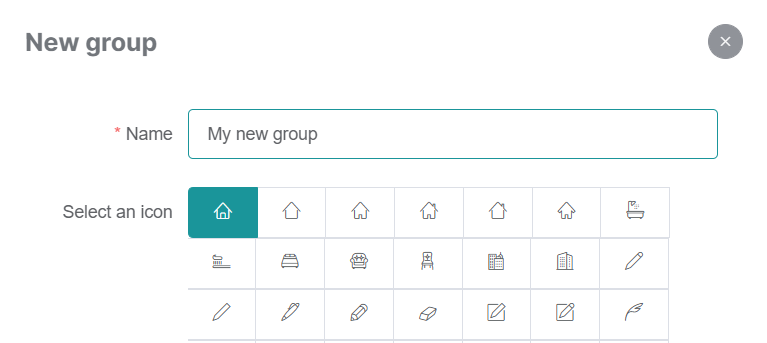
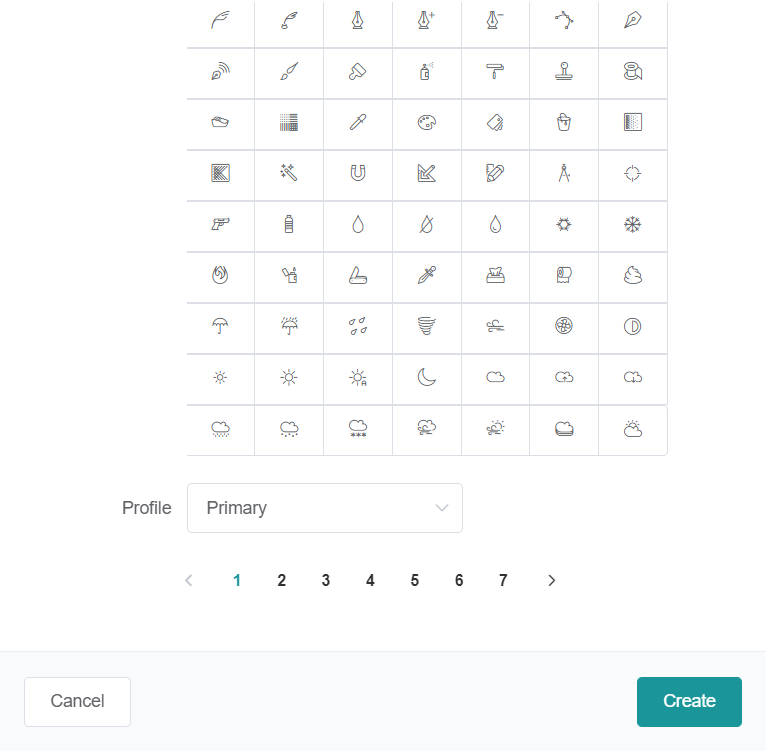
Set a name for your group, choose an icon, and set the "profile" for the group (to learn more about this setting, follow this icon link). Then click on the "Create" button at the bottom right of the drawer.
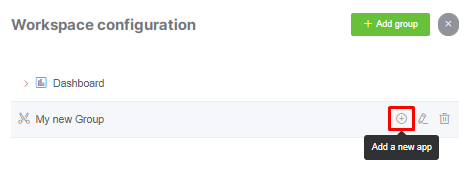
Now that the group is created, let's add an app to it (Gmail).
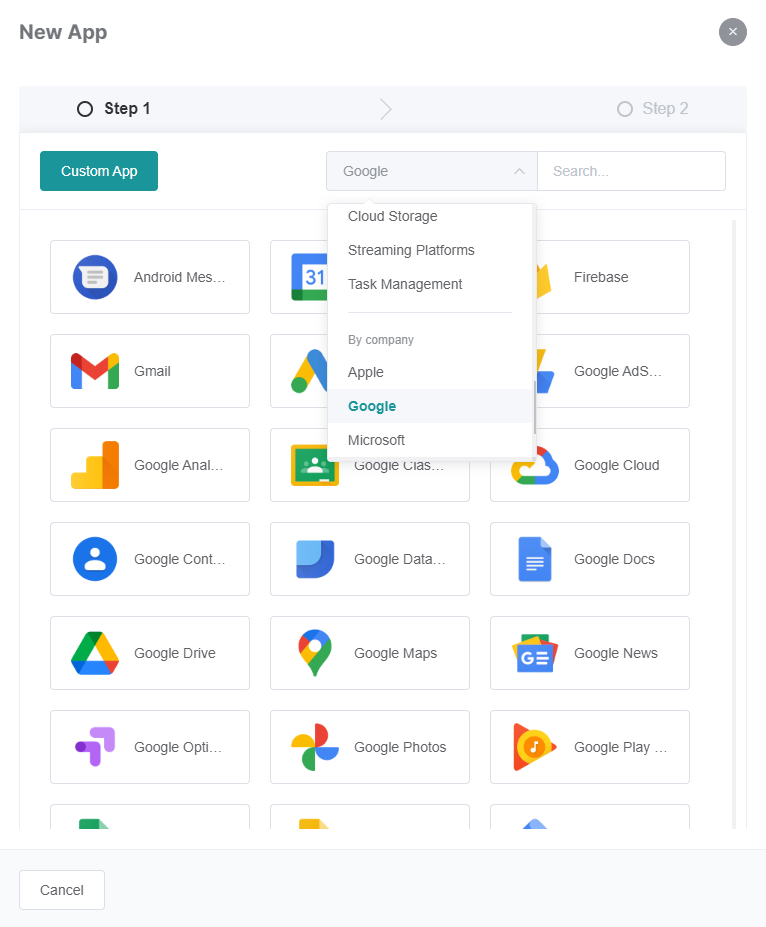
You can find your app by selecting a category (in this case selecting Google)...
...or filtering the apps by typing some letters of the app that you want.
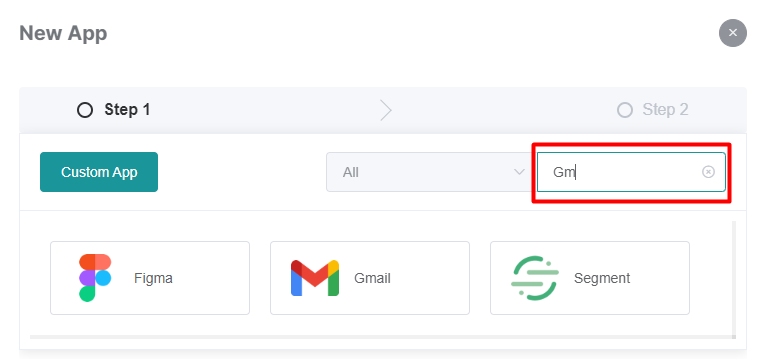
Click on your desired app.
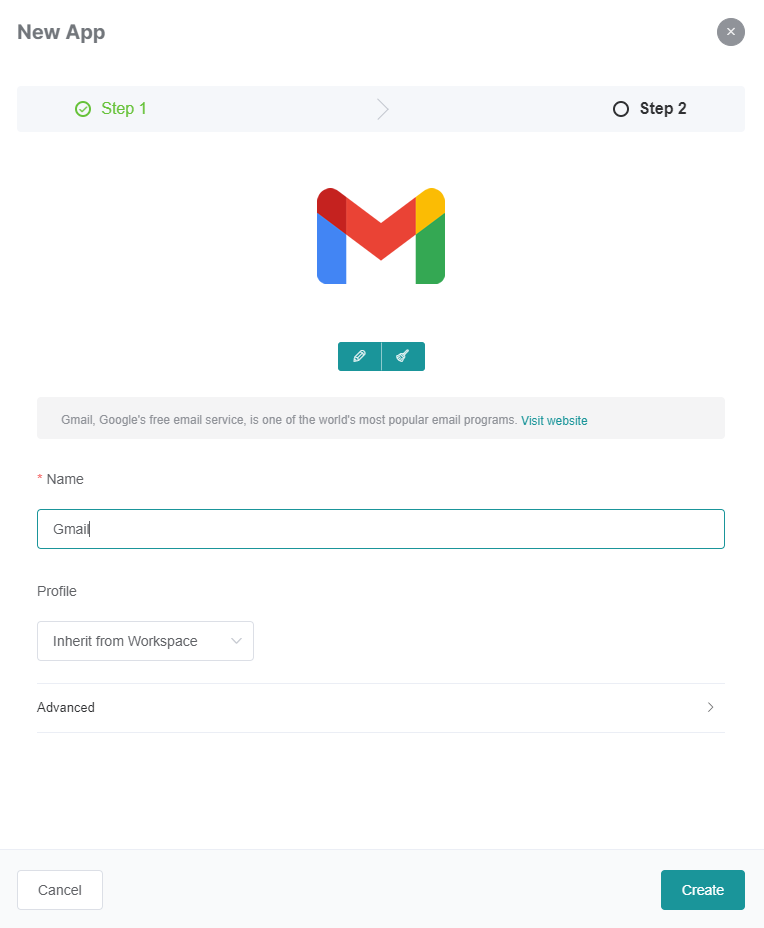
Chose your desired app settings and then click on the "Create" button.
That's it! You've just created a group and added an app to it!