
Insufficient hard disk space?
Why Rambox warns you about low disk space, and how to free up space so it keeps working properly.
Rambox needs at least 2 GB of free disk space to work properly. When it detects less than that, a banner appears at the top of the window:
You don't have enough hard disk space in your current device to ensure that Rambox works properly. We suggest freeing space to prevent malfunctions.
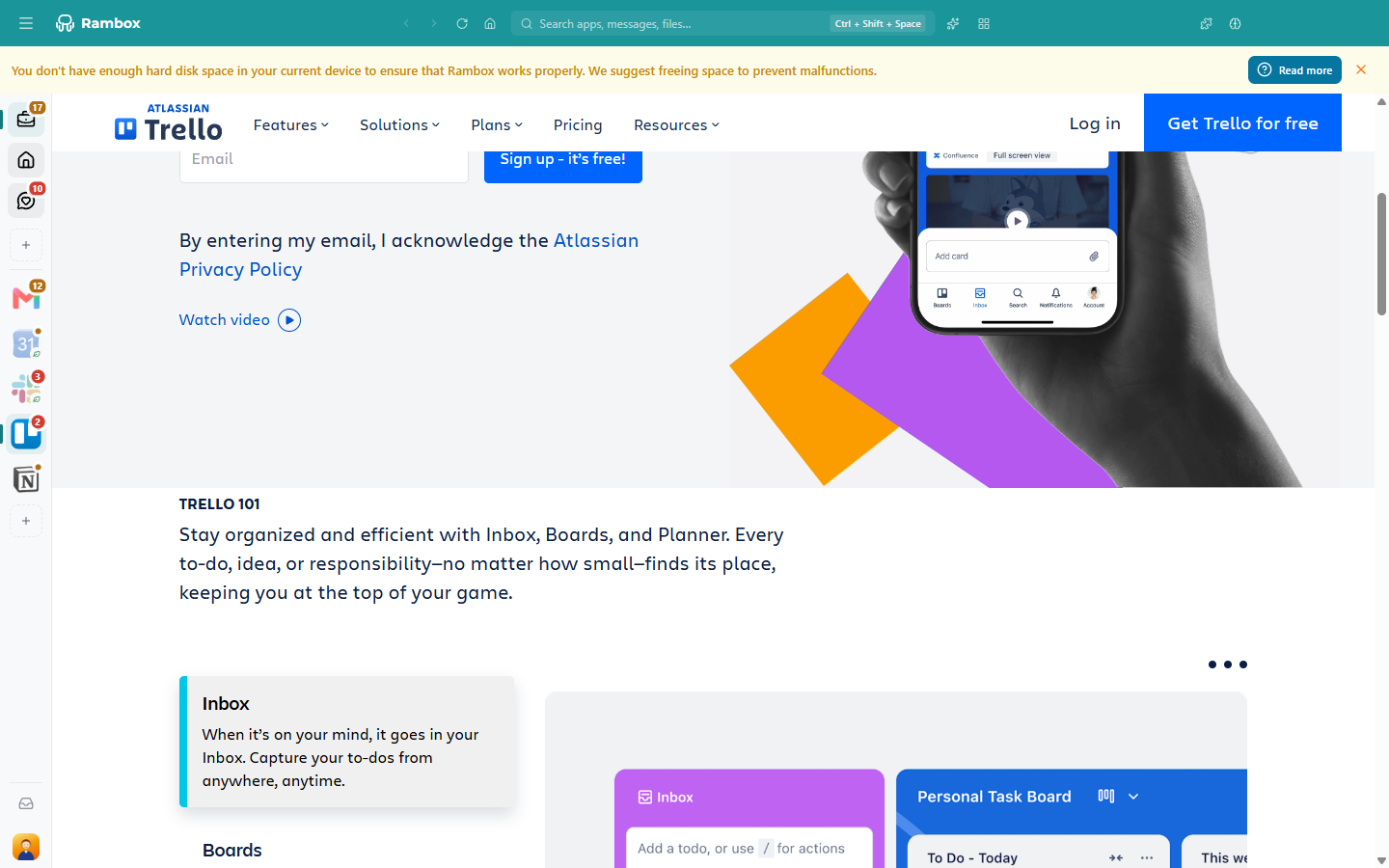
With too little space, apps may fail to load or behave erratically.
Likely causes
- Your disk is nearly full.
- Large downloads, temporary files or other programs are using most of the space.
You can close the banner with the X, but it comes back the next time Rambox checks your free space if the problem is still there. Rambox checks periodically, and right away if it runs out of space while saving something.
Check how much space you have
Open Tools → Troubleshooting and click Test all. The HDD space row shows your free space, marked (LOW) when it's under 2 GB. On Windows, the Tools menu is under the Menu button (☰) at the top-left of the window. See Troubleshooting tool.
How to free up space
Start with the quickest steps:
- Empty your Recycle Bin (Windows) or Trash (macOS and Linux).
- Clean your Downloads folder. Rambox saves downloaded files there by default.
- Remove temporary files:
- Windows: Settings → System → Storage → Temporary files, or the Disk Cleanup tool.
- macOS: System Settings → General → Storage shows recommendations.
- Linux: use your distribution's disk cleanup or disk usage tool.
- Uninstall programs you no longer use.
- Move large files (videos, photos, backups) to an external drive or cloud storage.
- If you still don't have enough room, consider adding more storage.
Then restart Rambox.
Related articles
Still not working? Request support