
Passkeys and two-factor authentication (2FA) don't work?
What to check when a passkey, security key or two-factor sign-in doesn't work inside an app in Rambox, and the current platform limitations.
Some services let you sign in with a passkey, a security key (such as a YubiKey), your fingerprint or face, or a code from your phone. If one of these methods fails inside an app in Rambox, this article explains why and what you can do.
INFO
This article is about signing in to the apps you add to Rambox (Google, Microsoft, Slack…). Your Rambox account itself is signed in from your web browser. See Signing in to Rambox.
Likely causes
- Platform limitations. Rambox is built with Electron, the same technology used by many desktop apps. Electron doesn't yet support every passkey and 2FA method on every operating system. Today, methods such as biometrics (Windows Hello), security keys and PIN codes work best on Windows. On macOS and some Linux distributions, some methods may not be offered or may fail.
- Bluetooth permission. Signing in with your phone, or with some security keys, uses Bluetooth. If your system hasn't allowed Rambox to use it, that method fails.
- A pop-up was blocked. Some sign-in flows open a separate window. If Rambox blocked it, the sign-in can't continue.
How to fix it
1. Allow Bluetooth for Rambox
- Open Settings: click your avatar at the bottom of the sidebar and choose Settings.
- Go to the Privacy & security tab and find Permissions.
- Look at Bluetooth (Signing in with your phone or a security key, and other nearby devices). On macOS, if it shows Not checked, click Check. On Windows it usually shows Not needed, which is fine. If it isn't allowed, click its switch to open your system settings and allow Rambox.
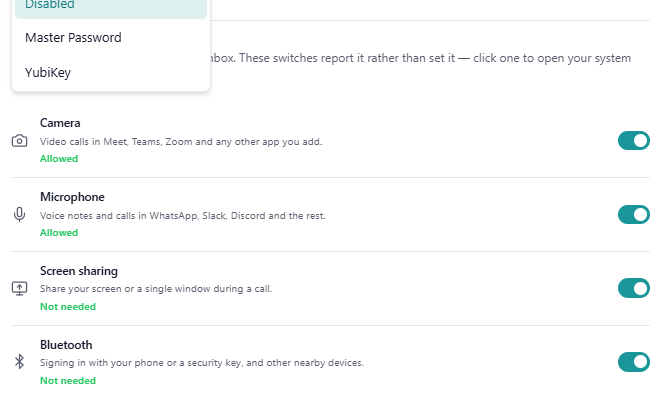
You can also use Tools → Troubleshooting and click Grant next to Bluetooth access. See Troubleshooting tool.
2. Let the sign-in window open
If you see A popup was blocked while signing in, click Open in browser once or Choose how to open it and pick Pop-up. See Why are pop-ups blocked?
3. Choose a different sign-in method
Most services let you choose another way to verify. On the sign-in page, look for a link such as "Try another way" or "Use another option" and pick:
- a code from an authenticator app,
- a code sent by text message or email,
- a backup code.
Once you're signed in, Rambox keeps the session, so you normally don't need to repeat this often.
4. Plug in your security key before you start
If you use a USB security key, plug it in before starting the sign-in, and touch it when the page asks.
We're working on it
We keep improving support for passkeys and 2FA as Electron adds it. Keep Rambox up to date to get those improvements: How to check for updates?
Related articles
Still not working? Request support