
How to add apps to a shared workspace
Add apps from the catalog or custom apps to a team's shared workspace in the console, and set their profile, link handling and advanced options.
The apps you add to a shared workspace appear automatically in the Rambox app of every member of that team or sub-team. You choose the app once, and everyone gets it with the same settings.
You need the Apps permission at Full to add or delete apps, and at Edit to change them. See Permissions explained.
No more groups
In Rambox 2, shared workspaces could contain groups. In Rambox 3, shared workspaces have a single level: workspaces contain apps. To organize apps, create several workspaces for the team instead. See How to set up a team and its workspaces.
Add an app
- Sign in to console.rambox.app and click Teams.
- Click the Shared Workspaces button on the team or sub-team row (for example, Sales).
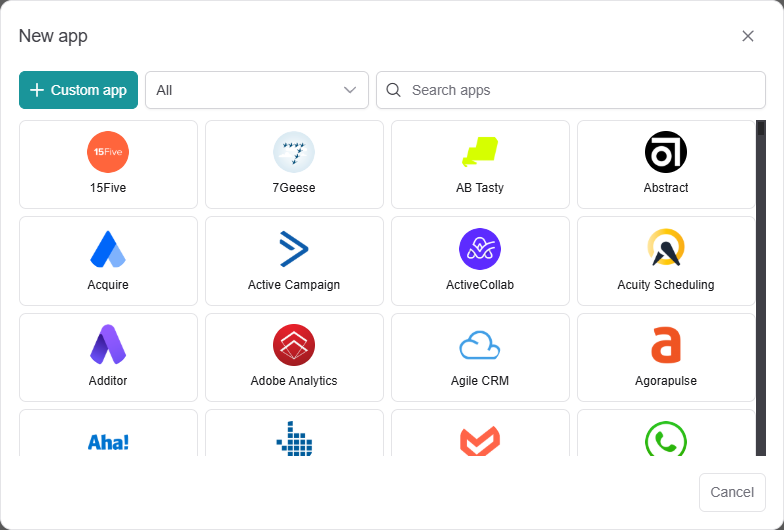
- On the workspace (for example, "Sales tools"), click the + button (Add app). If you opened the workspace's page instead, click Add app in the Apps card.
- Find the app: type in Search apps, or pick a category from the list.
- Click the app.
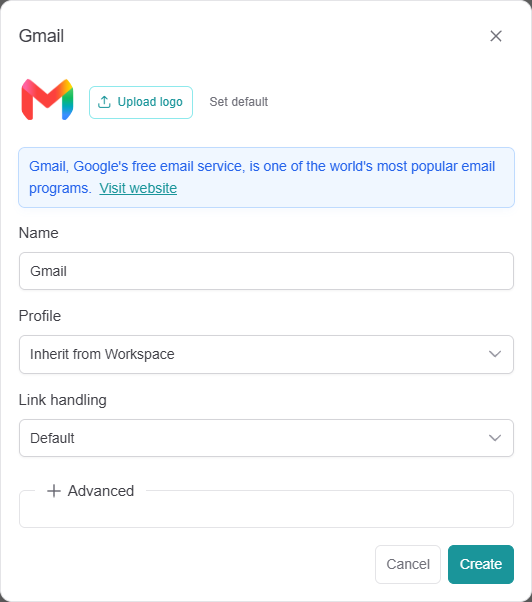
- Review its settings (see below).
- Click Create. You see "App created".
Add a custom app
If the app isn't in the catalog (for example, your company's intranet):
- In step 4 above, click Custom app.
- Type a Name and the URL (for example,
https://intranet.acme.com). - Optionally upload a logo, then click Create.
Some catalog apps depend on your company's own address (for example, a self-hosted chat). They show one or more URL options where you complete your company's address.
App settings
- Logo: click Upload logo to use your own (PNG, exactly 128 × 128 px), or Set default to go back to the catalog logo.
- Name: the name members see.
- URL: for custom apps and apps that need your company's address.
- Profile: which session the app uses. Inherit from Workspace (use the workspace's profile), Primary, Private or Incognito. See Profiles.
- Link handling: what happens when someone clicks a link inside the app: Default, Block all pop-ups, Open all in pop-ups, Open all in default browser or Open all in tabs. See Link handling.
Advanced
Click Advanced to expand it. The console warns: "The following options may cause security problems, use them responsibly. Restart the app to apply them."
- Inject JavaScript and Inject CSS: code that runs in the app for every member. See How to inject JavaScript and CSS code.
- User agent: a custom user agent, for apps that need one.
- Hibernate after (minutes): puts the app to sleep after that many minutes of inactivity. 0 disables hibernation. See How to hibernate.
- Start hibernated: the app doesn't load until the member opens it.
- Proxy: Auto detect, No proxy, HTTP, HTTPS, Socks, Socks4 or Socks5, with Host, Port, Username and Password. Needs to relaunch the app.
- Force mobile rendering: shows the app's mobile version.
Edit or delete an app
- Edit: click the pencil icon (Edit) on the app, change its settings and click Save ("App saved").
- Delete: click the trash icon (Delete) on the app and confirm with Delete app ("App deleted"). This removes the app for every member who uses the shared workspace.
- Reorder: drag the app by its handle, then click Save in "You have unsaved order changes."