
Custom branding
Put your company's name, logo and colors on Rambox for every member of your organization, from the console's Custom branding page.
Custom branding (called White-Label in Rambox 2) lets you give Rambox your company's look. Your logo and colors appear in your members' Rambox app, and your logo and name appear on your company sign-in page and on invitation pages.
You need the Organization permission at Edit or higher to see Custom branding. See Permissions explained.
What you can customize
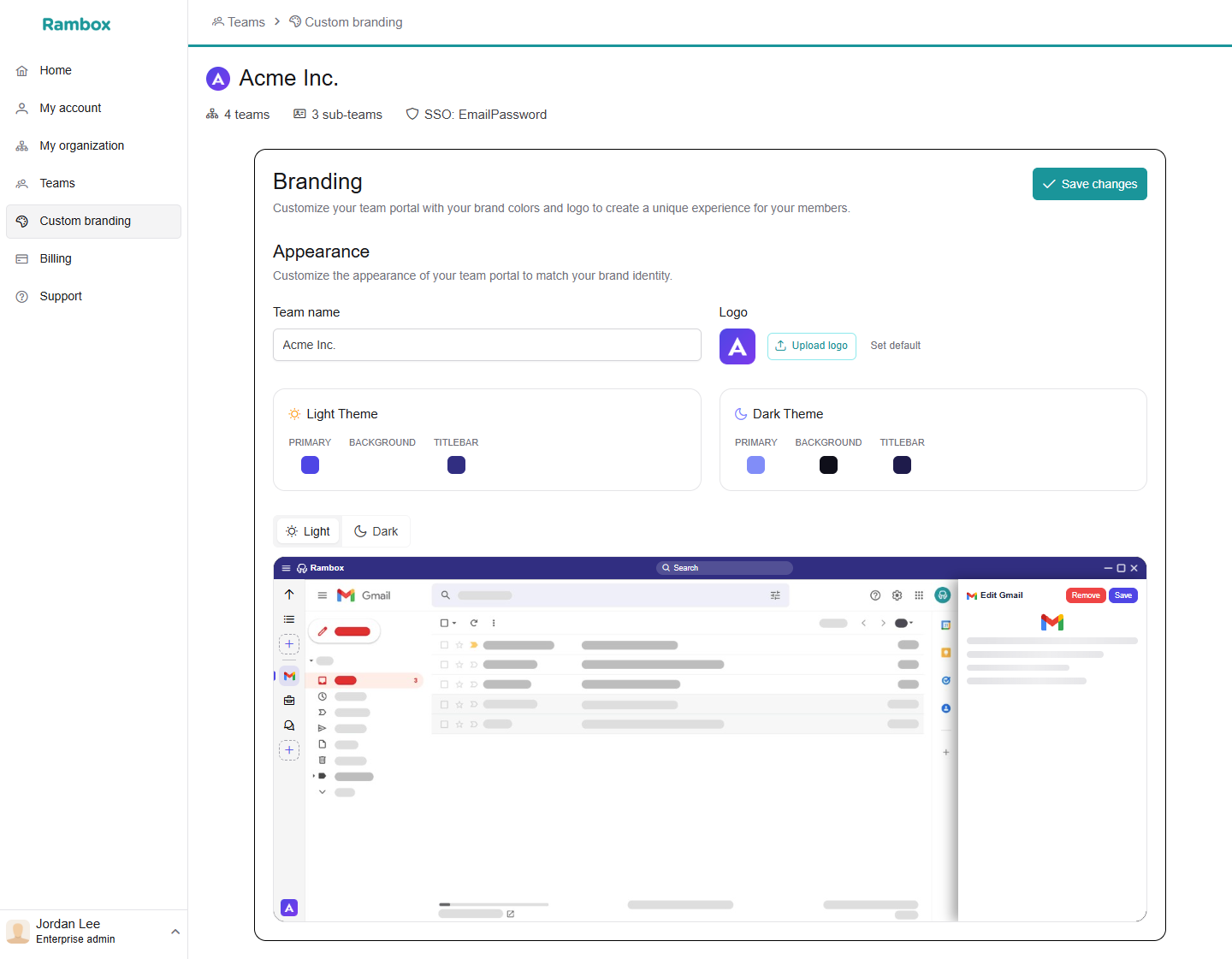
- Team name: the name of your organization, as members see it (for example, "ACME Corp."). Changing it here renames your organization.
- Logo: a PNG image of exactly 128 × 128 pixels.
- Light theme and Dark theme: three colors for each one:
- Primary: the accent color (buttons, highlights, active items).
- Background: the main background color.
- Titlebar: the color of the bar at the top of the window.
If you don't change them, the colors are Rambox's defaults: Primary #1A959A, Background #FFFFFF (light) or #000000 (dark), Titlebar #2a4c5c.
Set up your branding
- Sign in to console.rambox.app and click Custom branding in the sidebar.
- In Team name, type your company name.
- Under Logo, click Upload logo and choose your 128 × 128 px PNG file. To go back to the Rambox logo, click Set default.
- In the Light theme card, click each color (Primary, Background, Titlebar) and pick your color.
- Do the same in the Dark theme card.
- Check the result in the preview. Use the Light / Dark switch to see both themes.
- Click Save changes. You see the message "Branding saved".
If the logo is rejected, check the file: the console shows "Logo must be a PNG image" or "Logo must be exactly 128x128px".
What your members see
- In the Rambox app: your theme appears in Settings → Appearance → Theme, in a group called Enterprise, with your organization's name. Members choose it there, and can pick Light, Dark or System next to it to switch between your two color sets.
- On the sign-in page: when members sign in with your company ID, the page shows your logo and organization name.
- On the invitation page: new members see your logo when they create their account.