
Permissions explained
How Rambox Enterprise permissions work - the permissions matrix, access levels, the Basic, Intermediate and Full presets, admins and the organization owner.
Permissions decide what each member can see and do, both in the console and in the Rambox app. In Rambox 3 they're more detailed than in Rambox 2: instead of one Basic / Intermediate / Full choice, you set a level for each area. The three old choices still exist as quick presets.
Where permissions come from
You normally set permissions on a team or sub-team, not on each person:
- A member in a sub-team gets the sub-team's permissions.
- A member in a team with no sub-team gets the team's permissions.
- A member with no team has their own permissions, set in their Edit member dialog.
A sub-team's permissions replace the team's
They don't add up. At Acme, if the Human Resources team can invite members but the Recruiter sub-team can't, recruiters can't invite members, even though they're part of Human Resources.
When you create a sub-team, it starts with a copy of its team's permissions. After that, they're independent: changing the team later doesn't change the sub-team.
In the Add member and Edit member dialogs, the matrix is shown read-only when a team is chosen ("granted by the team/sub-team above, shown here for reference"). To change it, edit the team or sub-team. See How to edit teams and workspaces.
The permissions matrix
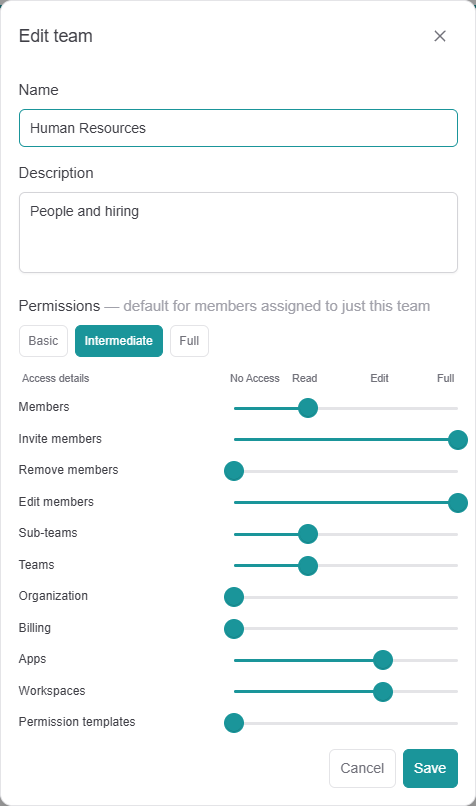
Each row is a slider with four levels:
- No Access: the member doesn't see this part.
- Read: the member can see it but not change it.
- Edit: the member can change what already exists.
- Full: the member can also create and delete.
| Row | What it controls |
|---|---|
| Members | Seeing the member list (My organization → Members). |
| Invite members | Inviting people and cancelling invitations (needs Full). |
| Remove members | Removing members from the organization (needs Full). |
| Edit members | Editing members: name, team, sub-team, support access, deactivating (needs Full). |
| Sub-teams | Seeing (Read), editing (Edit), and creating or deleting (Full) sub-teams. |
| Teams | Seeing the Teams page (Read), editing teams (Edit), and creating or deleting them (Full). |
| Organization | Organization-wide settings. Read shows the Home analytics and My organization. Edit adds Custom branding and changing Providers. Full makes the member an admin (see below). |
| Billing | Read shows the Billing page in the console (and Billing in the Rambox app's profile menu). Full allows changing the subscription and payment methods. |
| Apps | The apps inside shared workspaces: Edit to change them, Full to add and delete them. |
| Workspaces | Shared workspaces in the console: Edit to change them, Full to add and delete them. In the Rambox app, Edit or higher also lets the member create their own personal workspaces next to the shared ones. Below Edit, they only see the shared workspaces. |
| Permission templates | The permission presets. |
The presets
The buttons above the matrix fill in the sliders in one click. They copy the values once: after that you can adjust any slider, and the preset doesn't stay linked.
- Basic: no access to anything. The member uses the apps of their shared workspace in Rambox and can't change anything else. A good default for most people.
- Intermediate: Apps and Workspaces at Edit, Members at Read, Invite members and Edit members at Full, Sub-teams and Teams at Read. The member can add their own personal workspaces and apps in Rambox, and can open the console to see the member list and invite or edit members.
- Full: everything at Full. The member is an admin.
Intermediate is not the same as in Rambox 2
In Rambox 2, Intermediate only meant "can add their own apps". In Rambox 3, the Intermediate preset also lets the member invite and edit members in the console, and every accepted invitation uses a paid seat. If you only want people to add their own apps, start from Basic and raise Apps and Workspaces to Edit.
Admins and the owner
- Admin: any member whose Organization permission is Full. The Access column in Members shows them as Admin. You can have several admins.
- Owner: the person who created the organization. The owner always has full rights. Their permissions are locked ("This member's permissions are locked (organization owner) and can't be changed.") and they can't be removed.
To transfer ownership or delete the organization, contact Rambox support. There's no self-service option for either.
Examples
- Sales rep: Sales team with the Basic preset. Uses the Sales tools workspace, nothing else.
- Team lead who adds their own tools: start from Basic, set Apps and Workspaces to Edit.
- Office manager who handles invitations and invoices: Members at Read, Invite members, Edit members and Billing at Full.
- IT administrator: the Full preset.