
How to add users to your organization
Invite members from the console, choose their team, sub-team and permissions, and resend or cancel an invitation.
You add people to your organization by inviting them by email from the console. When they accept, they become members: they can sign in to Rambox with your company ID and get their team's shared workspace.
You need the Invite members permission at Full to see Add member. See Permissions explained.
Before you start
Decide which team (and, if needed, sub-team) the person belongs to. The team decides two things:
- their permissions, and
- the shared workspace they get in the Rambox app.
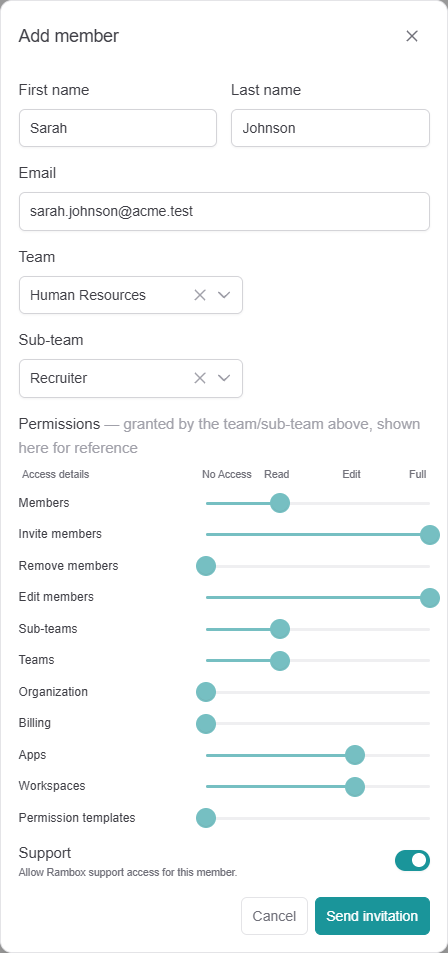
For example, at Acme, a new recruiter goes to the Human Resources team and the Recruiter sub-team. They get the Recruiter shared workspace and the Recruiter permissions. If the team doesn't exist yet, you can create it from the invitation dialog.
Invite a member
- Sign in to console.rambox.app and click My organization in the sidebar. The Members tab opens.
- Click Add member.
- Fill in First name, Last name and Email. The email can't be changed later.
- In Team, choose the person's team. To create one on the spot, open the list and click Create new team.
- In Sub-team, choose a sub-team if needed, or leave it empty. With no sub-team, you see "No sub-team — permissions come from the Team directly." To create one, click Create new sub-team.
- Look at Permissions. When a team is chosen, the matrix is read-only: it shows what the team or sub-team grants, for reference. To change it, edit the team or sub-team.
- Set Support: when on, the member can reach Rambox support from the Rambox app (Help menu, help links). Turn it off to hide those options.
- Click Send invitation. You see "Invitation sent".
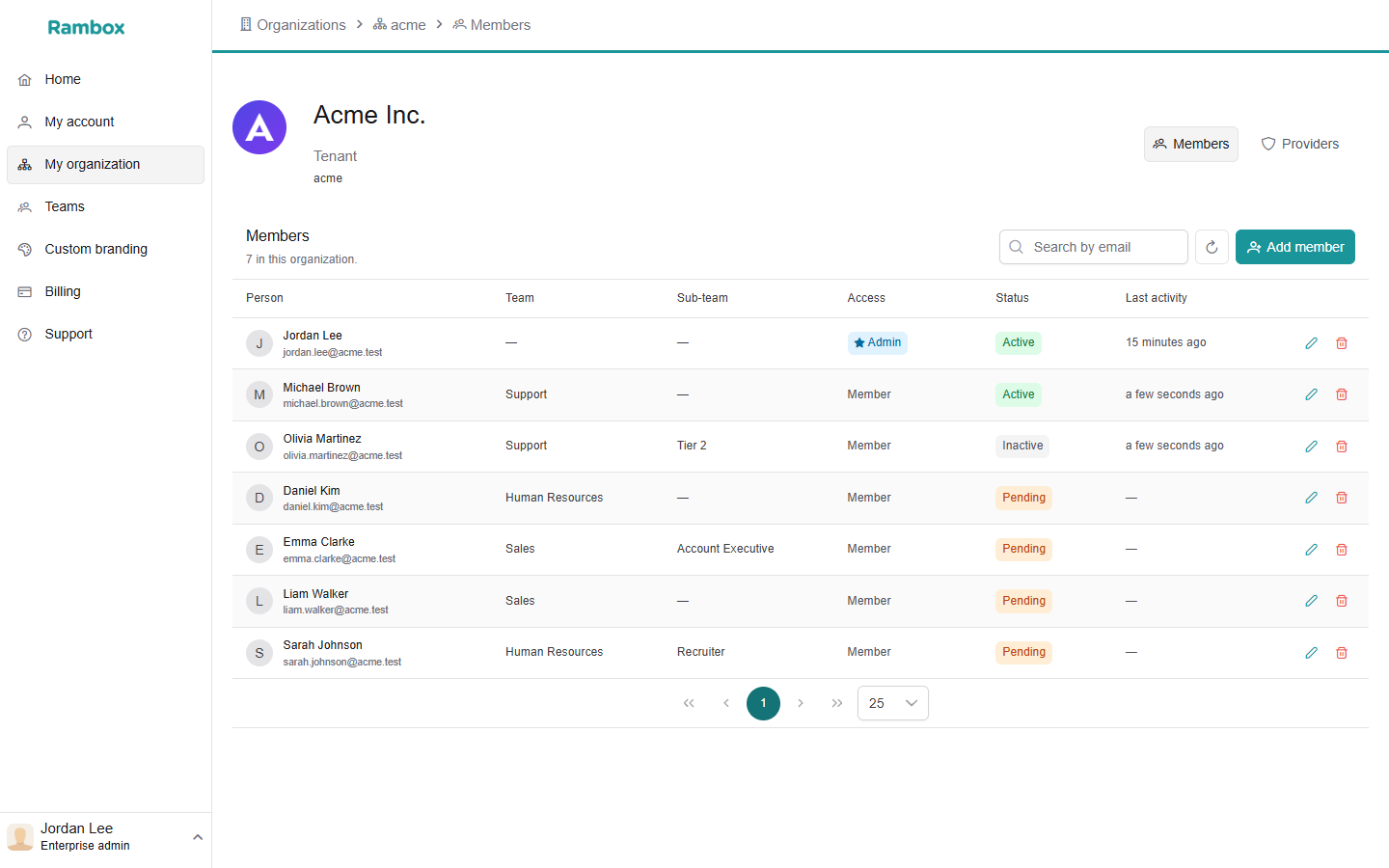
The person appears in the list as Pending until they accept. They receive an email with a link to create their account. See Set up a user from an email invitation.
Members without a team
If you leave Team empty, the Permissions matrix becomes editable and you set this member's permissions one by one. Members without a team don't get a team shared workspace.
Using teams is easier to maintain: change the team once and every member follows.
Seats and billing
A seat is billed when the person accepts the invitation, not when you send it. Pending invitations don't cost anything. See Subscribing to Rambox Enterprise.
Resend an invitation
There is no "resend" button. If someone didn't receive the email, or the link expired:
- In Members, find the person (status Pending).
- Click the trash icon (Cancel invitation) and confirm with Cancel invitation.
- Click Add member and invite them again with the same details.
Ask the person to check their spam folder first. See Not receiving emails from Rambox.
Cancel an invitation
In Members, click the trash icon on a Pending row and confirm with Cancel invitation. The link in the email stops working. You see "Invitation cancelled".
Good to know
- You can't import members in bulk; invite them one by one.
- The Access column shows Admin for members whose Organization permission is Full, and Member for everyone else.
- Last activity shows when the member last used Rambox.