
How to edit a user
Change a member's name, team, sub-team, permissions or support access, deactivate them, or remove them from your organization.
From the console you can change a member's details at any time: move them to another team, change their permissions, deactivate their access, or remove them from the organization.
You need the Edit members permission at Full to edit members, and Remove members at Full to remove them. See Permissions explained.
Edit a member
- Sign in to console.rambox.app and click My organization. The Members tab opens.
- Find the person. You can type part of their address in Search by email.
- Click the pencil icon (Edit member).
- Change what you need (see the fields below).
- Click Save. You see "Member updated".
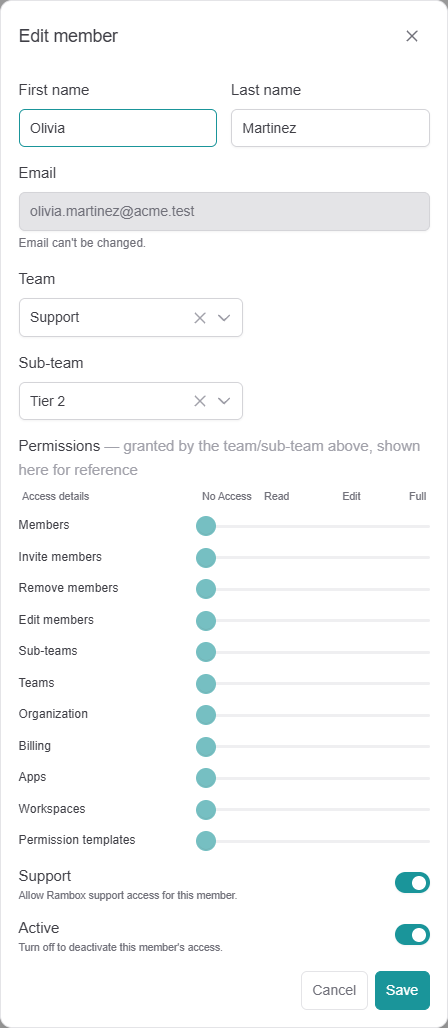
You can also click an active member's row to open their page. The Profile tab has the same fields (with Reset and Save changes), and the Machines tab lists the computers where they use Rambox.
The fields
- First name and Last name: the member's name.
- Email: can't be changed. To use another address, remove the member and invite the new address.
- Team and Sub-team: where the member belongs. Moving someone to another team changes their permissions and their shared workspace in the Rambox app. For example, moving a member from Sales to Human Resources → Recruiter replaces the Sales tools workspace with the Recruiter one.
- Permissions: read-only when a team is chosen, because the team or sub-team decides them. To change them, edit the team or sub-team, or move the member. Only members with no team have their own editable permissions. See Permissions explained.
- Support: when on, the member can reach Rambox support from the Rambox app. Turn it off to hide the support options.
- Active: turn it off to deactivate the member (see below).
Deactivate a member
Deactivating blocks a member's access without deleting them, for example during a long leave.
- Open Edit member for the person.
- Turn off Active and click Save.
The member is signed out of Rambox right away. The app shows "You were kicked out because your account was deactivated by your organization admin. Please, contact your admin." The status in the list changes to Inactive. To give access back, turn Active on again.
Deactivating doesn't free a seat
A deactivated member still counts as a paid seat. To stop paying for someone, remove them instead.
Remove a member
Removing someone takes them out of the organization and frees their seat.
- In Members, click the trash icon (Remove member) on the person's row.
- Confirm with Remove member. You see "Member removed".
Removing deletes the member's account
Removing a member also deletes their Rambox sign-in account. If they come back later, invite them again as a new member.
The organization owner can't be removed, and their permissions are locked ("This member's permissions are locked (organization owner) and can't be changed."). To transfer ownership, contact Rambox support.