
How to set up a team and its workspaces
Create teams and sub-teams in the console, give them permissions, and build the shared workspaces their members get in the Rambox app.
Teams let you configure many people at once. Every member of a team gets the same permissions and the same shared workspace in their Rambox app. A sub-team is a smaller group inside a team that needs something different.
You need the Teams permission at Full to create teams, and Sub-teams at Full to create sub-teams. See Permissions explained.
An example
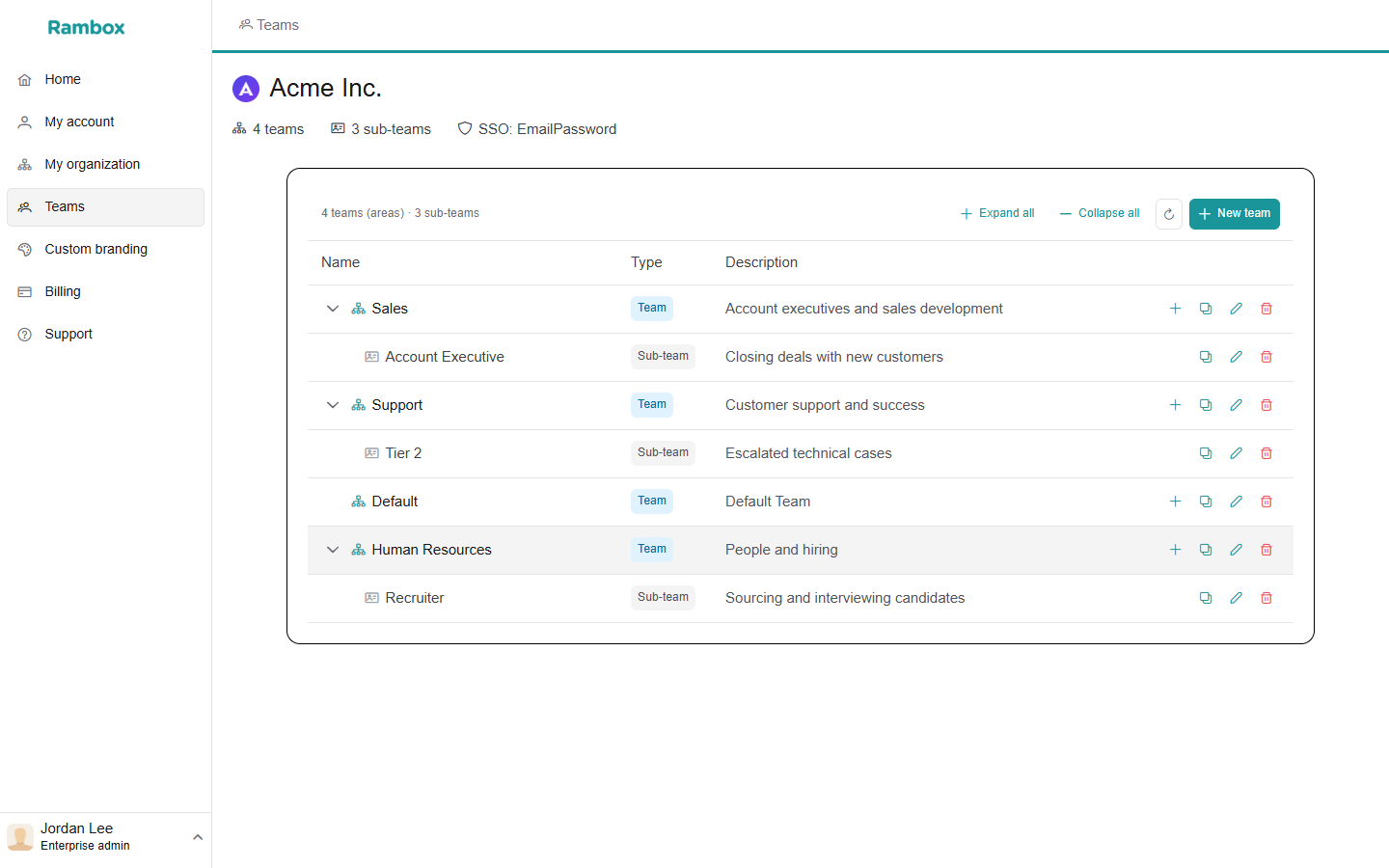
Acme has two departments:
- Sales: everyone uses Gmail, Slack and the CRM. One team, one shared workspace.
- Human Resources: most people use Gmail and the HR system, but recruiters also need LinkedIn and the hiring platform. So Human Resources gets a Recruiter sub-team with its own shared workspace and its own permissions.
Two rules to keep in mind:
- A member gets exactly one set of shared workspaces. A member in the Recruiter sub-team gets the Recruiter workspaces, not the Human Resources ones. A member in Human Resources with no sub-team gets the Human Resources workspaces. If recruiters also need the general HR apps, add them to the Recruiter workspace too.
- A sub-team's permissions replace the team's. They don't add up. Recruiters have exactly the Recruiter permissions.
Create a team
- Sign in to console.rambox.app and click Teams in the sidebar.
- Click New team.
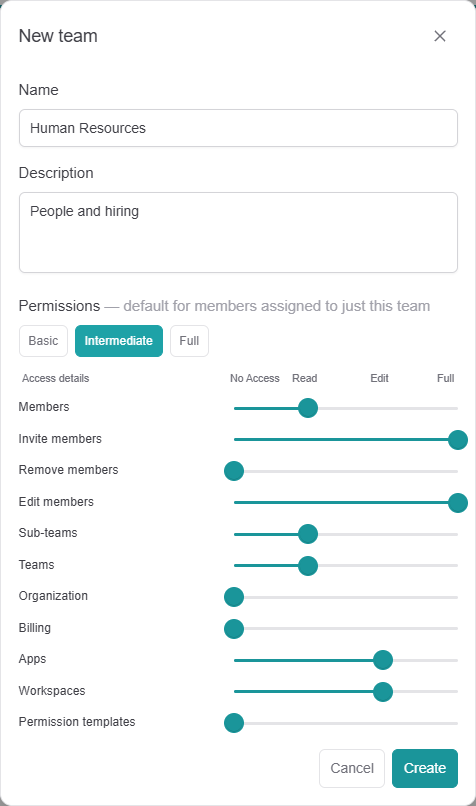
- Fill in Name (for example,
Human Resources) and Description (for example,People and hiring). Both are required. - Set the Permissions. These are the default for members assigned to just this team (no sub-team). Click a preset (Basic, Intermediate or Full) as a starting point, then adjust the sliders if needed.
- Click Create.
Create a sub-team
- In Teams, click the + button (Add sub-team) on the team's row.
- Fill in Name (for example,
Recruiter) and Description. - The Permissions start as a copy of the team's. Change them as needed. Remember: they replace the team's for members of this sub-team.
- Click Create.
You can also create a sub-team from the team's page (New sub-team in the Sub-teams card), or while adding a member (Create new sub-team).
Build a shared workspace
A shared workspace is a workspace, with its apps, that appears automatically in the Rambox app of every member of the team or sub-team.
- In Teams, click the Shared Workspaces button on the team or sub-team row. The Shared workspace dialog opens.
- You can also click the row to open the team's page and use the Shared workspaces card.
- Click Add workspace.
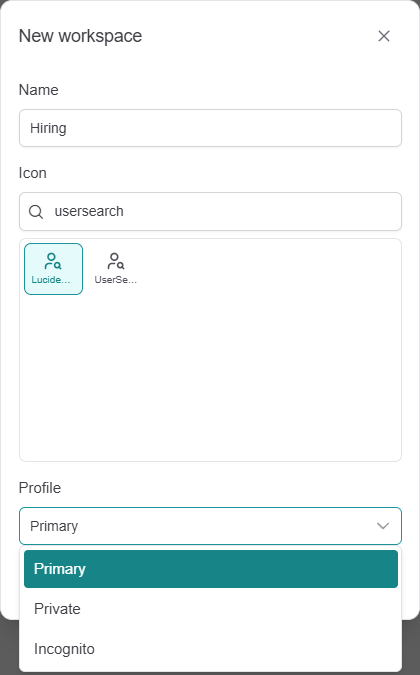
- Fill in:
- Name: for example,
Hiring. - Icon: pick one from the list.
- Profile: how the apps in this workspace share their sessions (logins and cookies). Primary shares one session with other Primary apps, Private keeps them separate, Incognito keeps nothing (no logins are saved). See Profiles.
- Name: for example,
- Click Create.
- Add apps to the workspace. See How to add apps to a shared workspace.
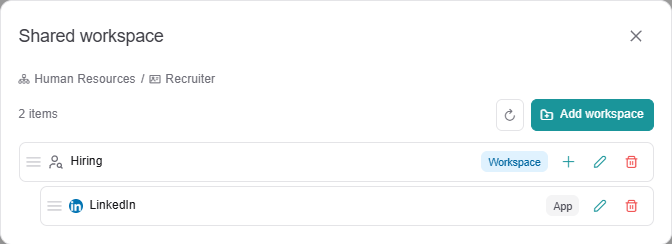
You can add several workspaces for the same team. Members see them in the order shown here; drag them by the handle to reorder, then click Save in "You have unsaved order changes." (or Discard).
Assign members
Once the team exists, choose it when you invite or edit members. See How to add users to your organization.
What members see
In the Rambox app, members find the shared workspaces in their sidebar, with the apps you added. Members can't move shared apps to another workspace. Members whose Workspaces permission is Edit or higher can also create their own personal workspaces next to the shared ones. See Permissions explained.