
Set up a user from an email invitation
You were invited to a company's Rambox. Accept the invitation, create your password, and sign in to the Rambox app with your company ID.
If your company uses Rambox Enterprise, your administrator invites you by email. This article explains how to accept the invitation and start using Rambox. It takes about two minutes.
1. Open the invitation email
Look for an email from Rambox inviting you to join your company's organization, and click its link.
Can't find it? Check your spam or promotions folder. If it isn't there, ask your administrator to invite you again.
2. Confirm your email
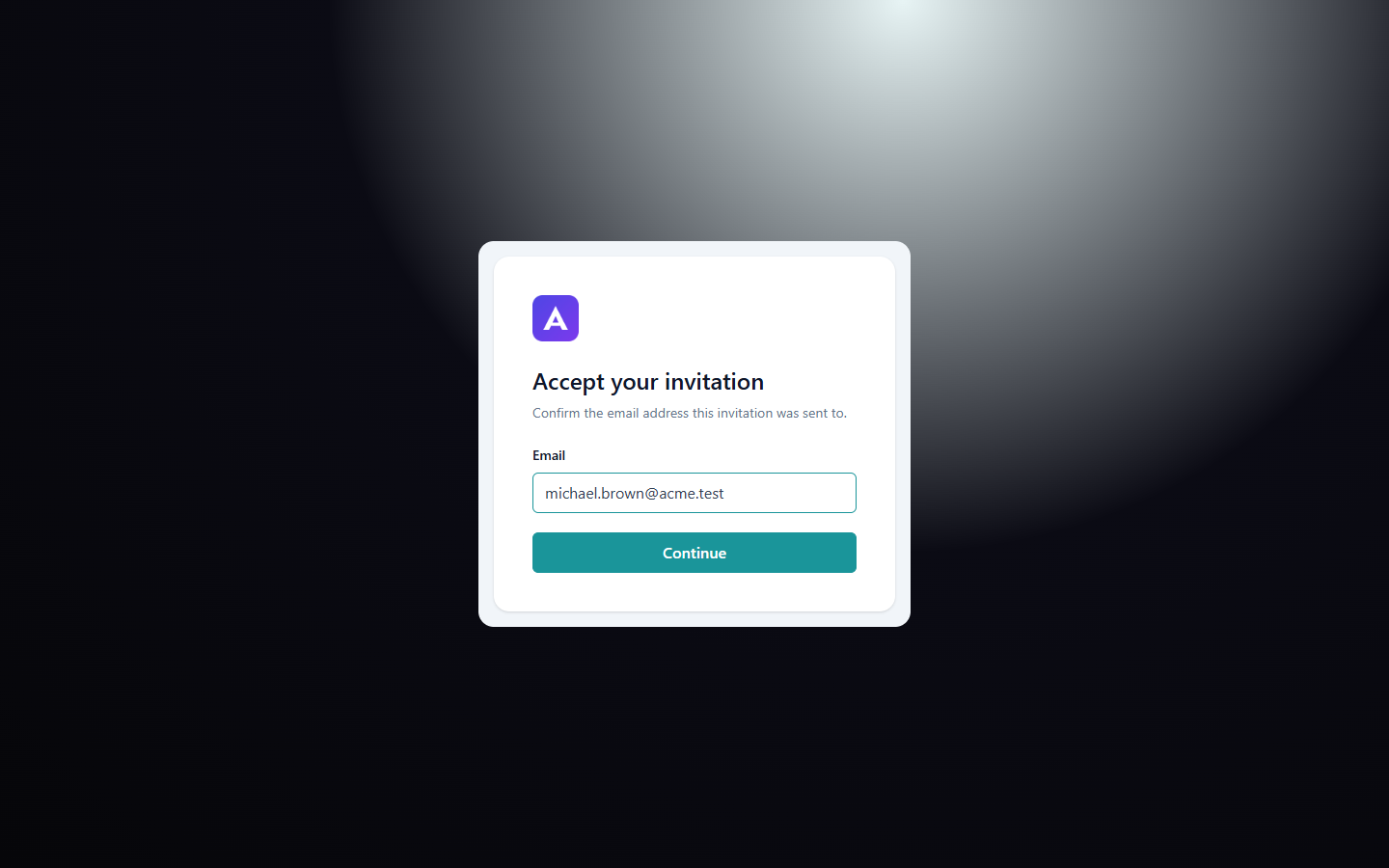
The link opens a page called Accept your invitation. For security, Rambox asks you to confirm the address the invitation was sent to.
- Type your email in Email.
- Click Continue.
3. Create your account
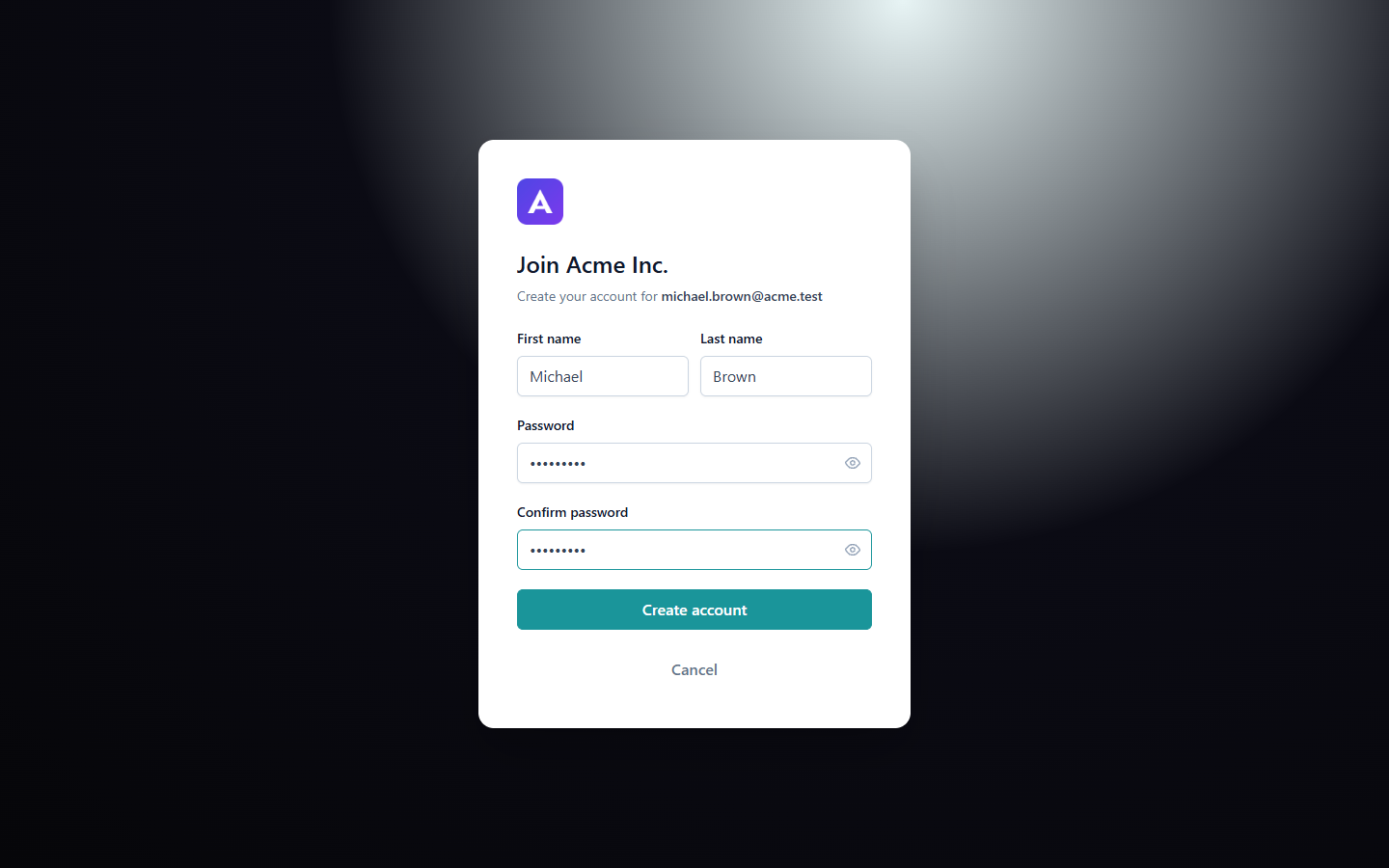
The page now says Join followed by your company's name (for example, "Join Acme"), with your company's logo.
- Check your First name and Last name. They're filled in by your administrator; you can change them.
- Choose a Password of at least 8 characters, and type it again in Confirm password.
- Click Create account.
You see "Taking you to your workspace…" and land in the Rambox console, already signed in. In the console you can update your profile and photo, and open support tickets.
4. Install Rambox and sign in
- Download and install Rambox for your computer from rambox.app/download. See Install Rambox on Windows, on macOS or on Linux.
- Open Rambox and click Continue with your browser.
- In the browser, click Sign in with your company ID, type your company's ID and click Continue.
- Sign in with your work email and the password you just created.
Your team's apps are already waiting for you in the sidebar. See How to log in to my Enterprise account for details and help with the company ID.
If something goes wrong
- "You already have an account": your account was already created. Click Sign in and sign in with your email and password.
- "This invitation link has expired or was already used. Ask your administrator to send you a new invitation.": ask your administrator to invite you again.
- "This invitation was cancelled or has already been used. Ask your administrator to send you a new one.": the invitation was cancelled or replaced. Ask your administrator for a new one.
- "Invitation session expired" ("Open the invitation link from your email again to continue."): click the link in the email again.