
How to edit teams and workspaces
Rename teams and sub-teams, change their permissions, edit or reorder their shared workspaces, and delete what you no longer need.
Teams, sub-teams and their shared workspaces can be changed at any time from the console. Changes apply to every member of that team or sub-team.
You need the Teams (or Sub-teams) permission at Edit to change them and at Full to delete them. For shared workspaces you need Workspaces at Edit or Full. See Permissions explained.
Edit a team or sub-team
You can edit from the list or from the team's page.
From the list:
- Sign in to console.rambox.app and click Teams.
- Click the pencil icon (Edit) on the team or sub-team row. Use Expand all to see every sub-team.
- Change the Name, Description or Permissions.
- Click Save.
From the team's page:
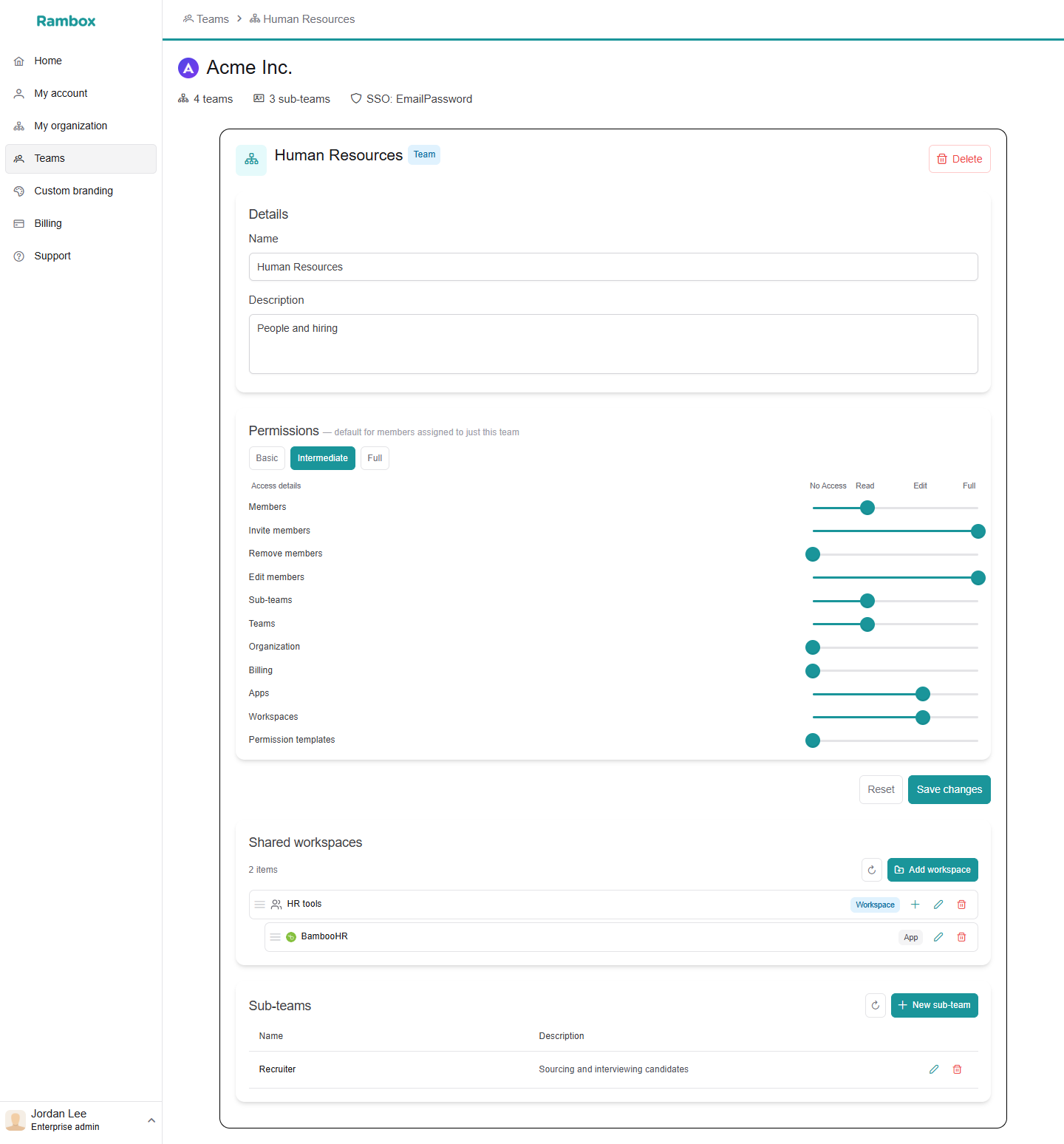
- In Teams, click the team or sub-team row. Its page opens, with the cards Details, Permissions, Shared workspaces and (for a team) Sub-teams.
- Change the Name, Description or Permissions.
- Click Save changes. Reset discards your changes.
Changing permissions
A team's permissions apply to its members who have no sub-team. Members in a sub-team follow the sub-team's permissions instead, so editing the team doesn't change them. Changing a team's permissions later doesn't update its existing sub-teams. See Permissions explained.
Edit a shared workspace
- In Teams, click the Shared Workspaces button on the team or sub-team row (or use the Shared workspaces card on its page).
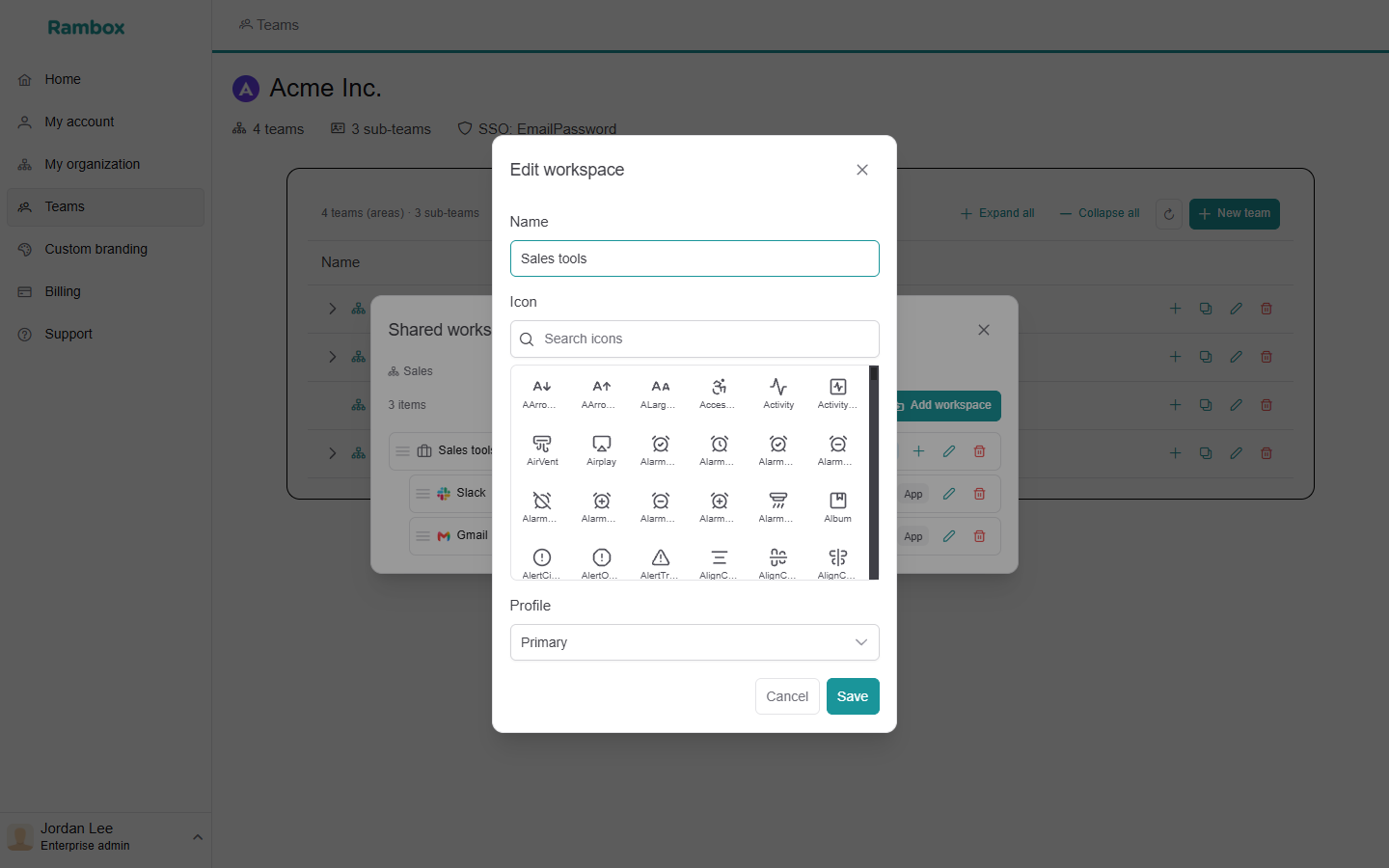
- On the workspace, click the pencil icon (Edit).
- Change the Name, Icon or Profile.
- Click Save.
You can also click the workspace to open its page, with a Details card (Name, Profile, Icon, then Save changes) and an Apps card.
To change the apps inside a workspace, see How to add apps to a shared workspace.
Reorder workspaces and apps
- Drag a workspace or app by its handle (the three lines on the left).
- A message says "You have unsaved order changes." Click Save to keep the new order, or Discard to undo.
Delete a shared workspace
- Click the trash icon (Delete) on the workspace.
- Confirm with Delete workspace.
DANGER
Deleting a shared workspace deletes everything inside it, for every member who uses it.
Delete a sub-team
- In Teams, click the trash icon (Delete) on the sub-team row.
- Confirm with Delete sub-team.
Its members go back to the team: they get the team's permissions and the team's shared workspace.
Delete a team
- In Teams, click the trash icon (Delete) on the team row.
- Confirm with Delete team.
Deleting a team also deletes all its sub-teams. A team that still has members can't be deleted: first move its members to another team (see How to edit a user).
When members see the changes
Members see the changes to their shared workspaces in their Rambox app.